 Gig Income
How to download your PayPal statement as a CSV file
PayPal lets you download your transactions as a file. It takes a few minutes, and you only need a web browser.
What is a CSV file?
A CSV file is a simple spreadsheet saved as plain text. Each line is one transaction (the date, who it was from, the amount and so on), with the details separated by commas. CSV stands for "comma-separated values".
Excel, Google Sheets and calculators like this one can all read it. You don't need to open it or change anything in it.
Step by step
- Open PayPal's reports page
Go to this address and log in if PayPal asks you to: paypal.com/reports
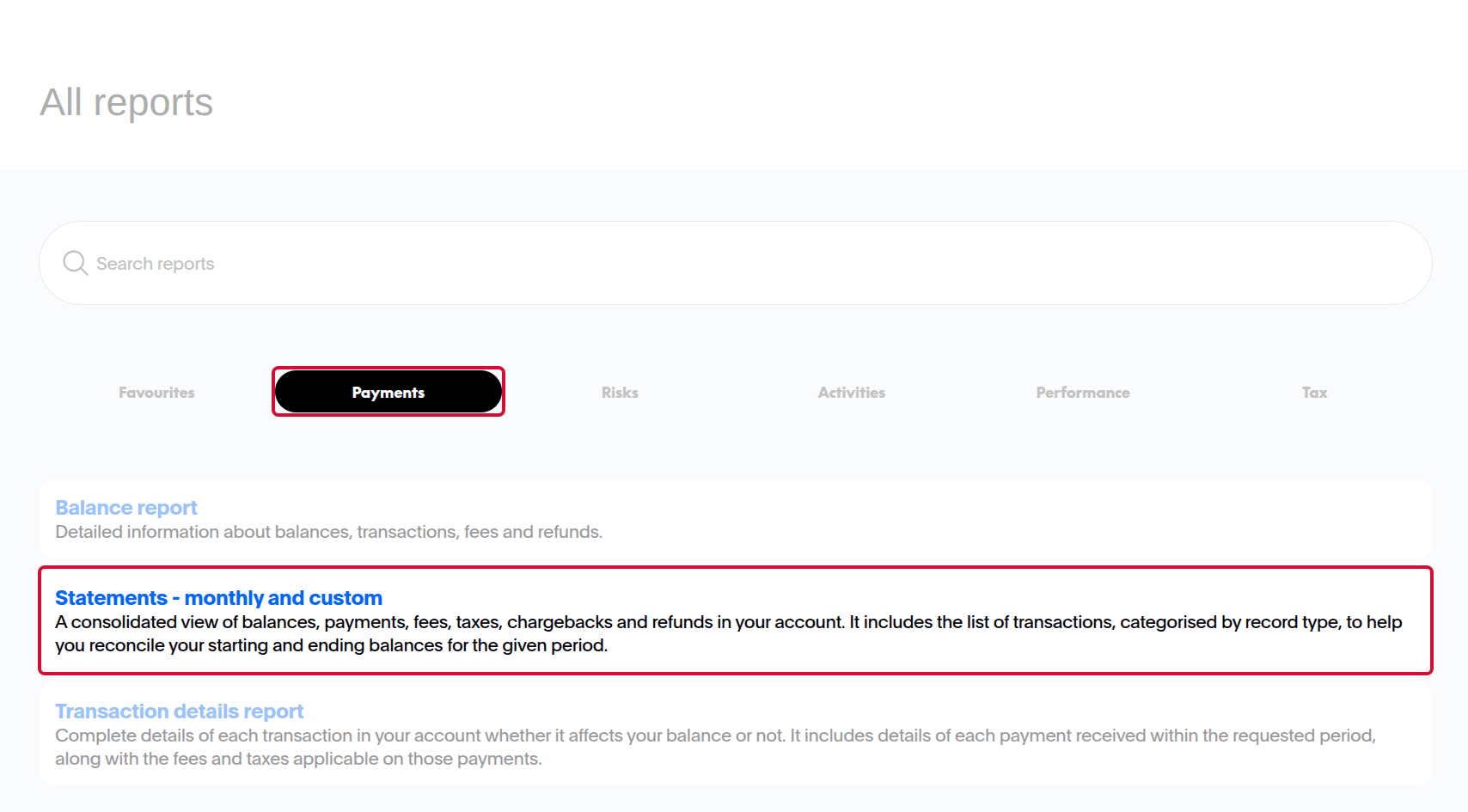
- Choose "Statements - monthly and custom"
On the All reports page, make sure the Payments tab is selected. Then click "Statements - monthly and custom".
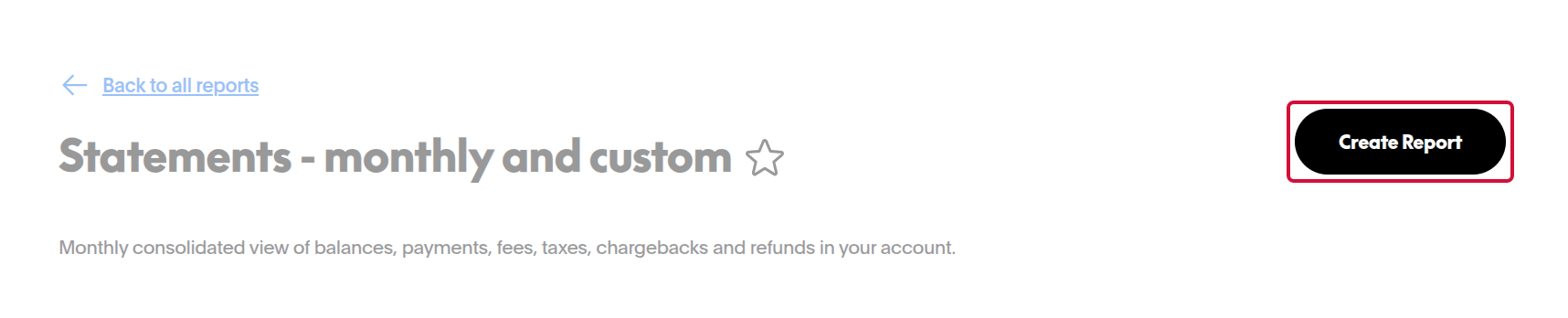
- Click Create Report
The button is at the top right of the Statements page.
- Pick CSV and your dates
Set File format to CSV. Under Date range, choose dates that cover everything you want to add up, such as a whole tax year (in the UK, 6 April to 5 April). One report can cover several years, and you can narrow the dates down later in the calculator.

- Wait for Ready, then click Download
Your report appears in a list on the same page. When its status says Ready, click Download and save the file. Do not open and re-save it in a spreadsheet program first, because that can change the dates and amounts.

Tips
- Pick dates that cover a whole tax year (6 April to 5 April). One file can cover several years.
- Don't open and re-save the file in Excel before using it. That can change the dates and amounts.
- You can download more than one file. If their dates overlap, nothing is counted twice.
- The right file has a column called "Description". PayPal has another kind of CSV that the calculator can't read yet.
Got your CSV file?
Drop it into the Gig Income calculator to see your PayPal earnings for each tax year.
Go to the income calculator